Azure Data Explorer is a powerful analytics service that allows us to quickly ingest, store, and analyze large volumes of data from various sources. Azure Data Factory is a cloud-based data integration service that allows us to create data pipelines that can move and transform data from various sources to various destinations.
This blog post is about how integrating Azure Data Explorer with Azure Data Factory, we can easily ingest and process data from various sources into Azure Data Explorer.
Here’s how we can integrate Azure Data Explorer with Azure Data Factory:
Create a Data Factory: The first step is to create an Azure Data Factory in your Azure subscription.
Create a Linked Service: The next step is to create a Linked Service that connects to your Azure Data Explorer instance. This Linked Service will contain the connection details for your Azure Data Explorer instance.
Create a Dataset: Once you have created the Linked Service, you need to create a Dataset that specifies the location and format of your source data.
Create a Pipeline: The final step is to create a Pipeline that specifies the flow of data from the source to the Azure Data Explorer instance. The Pipeline contains the activities that will transform and move the data.
Add the Azure Data Explorer Sink: Within the Pipeline, you need to add an Azure Data Explorer Sink that will specify the destination of the data in Azure Data Explorer.
Configure the Sink: You will need to configure the Azure Data Explorer Sink with the table name, database name, and cluster name.
Run the Pipeline: Once you have configured the Pipeline, you can execute it to start ingesting data into Azure Data Explorer. Azure Data Factory provides a visual interface that allows you to monitor the progress of your Pipeline and troubleshoot any issues.
By integrating Azure Data Explorer with Azure Data Factory, we have easily ingested and processed data from various sources into Azure Data Explorer. This integration allows us to build scalable and flexible data integration pipelines that can handle a wide variety of data sources and destinations.
In this blog post let us stop for a second and see where we are in this whole create an Azure Data Explorer cluster and ingest data. High level summary below:
What is Azure Data Explorer:
It is a fast and scalable data analytics service that can be used to ingest, store, and analyze large volumes of data from various sources. Here are the steps to ingest data using Azure Data Explorer:
Create a database and a table: The first step is to create a database and a table in Azure Data Explorer where the data will be stored. You can create a database and a table using Azure Portal, Azure PowerShell, or Azure CLI.
Prepare the data for ingestion: Before ingesting the data into Azure Data Explorer, you need to prepare the data. This includes cleaning and formatting the data in a way that is compatible with Azure Data Explorer.
Choose a data ingestion method: Azure Data Explorer supports several data ingestion methods, including Azure Data Factory, Azure Stream Analytics, Event Hubs, and more. Choose the method that best suits your needs.
Ingest the data: Once you have chosen the data ingestion method, you can start ingesting the data into Azure Data Explorer. The data will be automatically indexed and stored in the table you created in step 1.
Verify the data ingestion: After the data is ingested, you should verify that it was successfully ingested and is available for analysis. You can use Kusto Query Language (KQL) to query the data and perform analytics.
In summary, to ingest data using Azure Data Explorer, we need to create a database and a table, prepare the data, choose a data ingestion method, ingest the data, and verify the data ingestion.
In the previous blog post we created a database in our Azure Data Explorer (ADX) cluster.
In this blog post we will discuss how we can ingest data into that database as part of this process:
There are several ways to ingest data – we will be using the cluster we have built – but I will cover a FREE method where you can use Azure Data Explorer and familiarise yourself with it – where you only need a Microsoft account or an Azure Active Directory user ID – no Azure subscription or credit card is needed. More on that later.
Data ingestion is the process used to load data records from one or more sources into a table in Azure Data Explorer. Once ingested, the data becomes available for query.
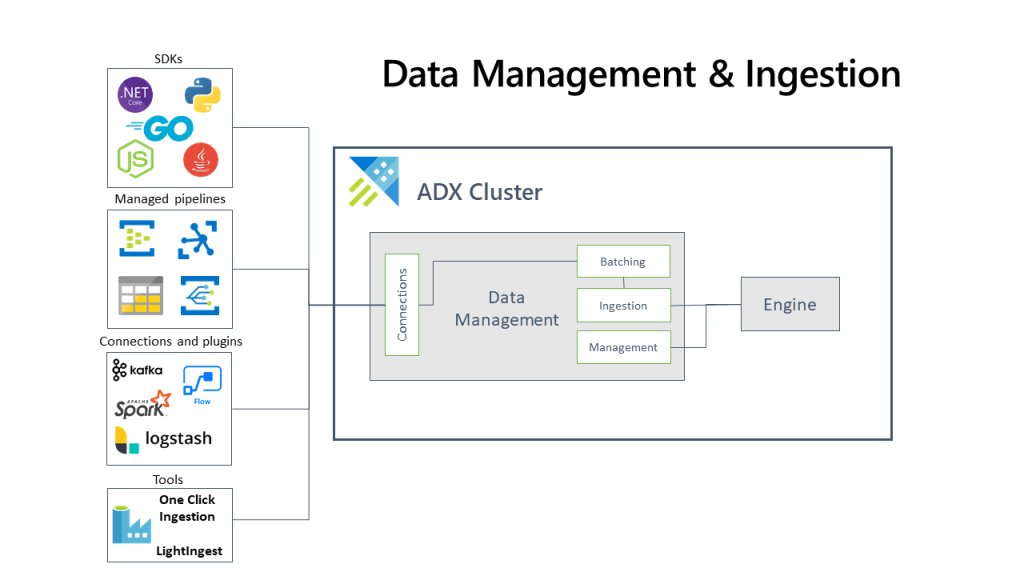
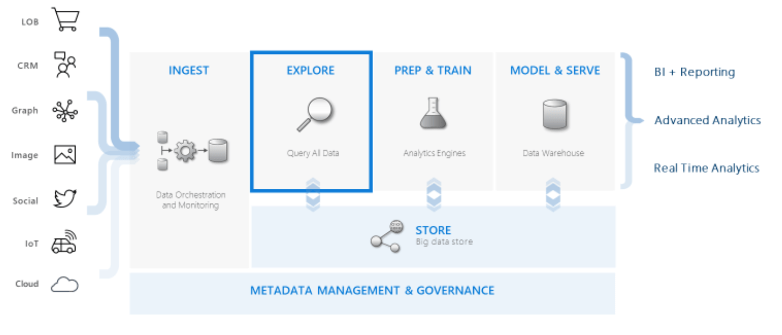
The diagram below shows the end-to-end flow for working in Azure Data Explorer and shows different ingestion methods:
The Azure Data Explorer data management service, which manages the data ingestion, implements the following process:
Azure Data Explorer pulls data from our declared external source and reads requests from a pending Azure queue.
Data is batched or streamed to the Data Manager.
Batch data flowing to the same database and table is optimised for fast and efficient ingestion.
Azure Data Explorer will validate initial data and will convert the format of that data if required.
Further data manipulation includes matching schema, organising, indexing, encoding and data compression.
Data is persisted in storage according to the set retention policy.
The Data Manager then commits the data ingest into the engine, where can now query it.
Supported data formats, properties, and permissions
Supported data formats: The data formats that Azure Data Explorer can understand and ingest natively (for example Parquet, JSON)
Ingestion properties: The properties that affect how the data will be ingested (for example, tagging, mapping, creation time).
Permissions: To ingest data, the process requires database ingestor level permissions. Other actions, such as query, may require database admin, database user, or table admin permissions.
We have 2 modes of ingestion:
BATCH INGESTION:
This is where we batch up our data and we optimise it for high throughput. Out of the two methods this one is the faster method and typical for what you will do for data ingestion.We set our ingestion properties for how our data is batched and then small batches of data are merged and optimised for fast query results.
By default, the maximum batching value is 5 minutes, 1000 items, or a total size of 1 GB. The data size limit for a batch ingestion command is 6 GB.
This is where our data ingestion is from a streaming source and is ongoing. This allows us near real-time latency for any small sets of data that we in our table(s). Data is initially ingested to row store and then moved to column store extents. You can also ingest streaming data using data pipelines or one of the Azure Data Explorer client libraries:
IoT Hub: A pipeline that is used for the transfer of data from supported IoT devices to Azure Data Explorer. For more information, see Ingest from IoT Hub.
Azure Data Factory (ADF): A fully managed data integration service for analytic workloads in Azure. Azure Data Factory connects with over 90 supported sources to provide efficient and resilient data transfer. ADF prepares, transforms, and enriches data to give insights that can be monitored in different kinds of ways. This service can be used as a one-time solution, on a periodic timeline, or triggered by specific events.
Apache Spark connector: An open-source project that can run on any Spark cluster. It implements data source and data sink for moving data across Azure Data Explorer and Spark clusters. You can build fast and scalable applications targeting data-driven scenarios. See Azure Data Explorer Connector for Apache Spark.
Using SDKs to programmatically ingest data:
We have a number of SDKs that we can use for both query and data ingestion.
You can check out these SDK and open source projects:
This blog post is based on my personal experience running an Azure Data Explorer (ADX) cluster.
I was doing a presentation for Data Platform Summit in India, I spun up my cluster, created database/tables, ingested data and forgot to tear down the cluster.
I also scaled it right up to show how we can make things go faster…
…when we scale things in Azure – it costs more!!
I burned through my monthly MSDN subscription allowance in 2 days…
So here are a couple of ways you can not waste money with cloud resources.
Learn Infrastructure as Code… I use terraform on an hourly basis and so my first go to is spin it up, ingest data, use it then tear it down. When I need the cluster again – just run my script:
Stop your cluster when not in use: To stop the cluster, at the top of the Overview tab, select Stop.
To restart the cluster, at the top of the Overview tab, select Start. When the cluster is restarted, it takes about 10 minutes for it to become available (like when it was originally provisioned). It takes more time for data to load into the hot cache.
Unless you absolutely do need to have the cluster around my recommendation is to use Infrastructure as Code to spin it up as you need it then destroy it. Because as much as I love Azure – I also love saving my own and client money…
In the previous blog post we created an Azure Data Explorer (ADX) cluster.
In this blog post we will create a database that we will ingest data into, as part of this process:
On the Overview tab, select Create database.
Fill out the form with the following information.
Setting
Suggested value
Field description
Admin
Default selected
The admin field is disabled. New admins can be added after database creation.
Database name
TestDatabase
The name of database to create. The name must be unique within the cluster.
Retention period
365
The number of days that data is guaranteed to be kept available for querying. The period is measured from the time data is ingested.
Cache period
31
The number of days to keep frequently queried data available in SSD storage or RAM to optimize querying
Select Create to create the database. Creation typically takes less than a minute. When the process is complete, you’re back on the cluster Overview tab.
Now that we’ve created the cluster and database, we can run some basic queries and commands. The database doesn’t have data yet, but we can see how the tools work.
Under our cluster, select Query. Paste the command .show databases into the query window, then select Run. The result set shows TestDatabase, the only database in the cluster.
Paste the command .show tables into the query window and select Run. This command returns an empty result set because we don’t have any tables yet. We will add a table and ingest data in one of the next blog posts.
I have written a lot about the magic of KQL and the brilliance of Azure Data Explorer.
Now we should create a cluster of our own that hosts Azure Data Explorer… To use Azure Data Explorer, we first create a cluster, and create one or more databases in that cluster. Then we’ll ingest data into that database so that we can run queries against it.
If you don’t have an Azure subscription, create a free Azure account before you begin.
Here is how we will create an Azure Data Explorer cluster:
Steps:
Login into the Azure portal
Create an Azure Data Explorer cluster with a defined set of compute and storage resources in an Azure resource group.Select the + Create a resource button in the upper-left corner of the portal.
Search for Azure Data Explorer.
Under Azure Data Explorer, select Create.
Fill out the basic cluster details with the following information.
Setting
Suggested value
Field description
Subscription
Your subscription
Select the Azure subscription that you want to use for your cluster.
Resource group
Your resource group
Use an existing resource group or create a new resource group.
Cluster name
A unique cluster name
Choose a unique name that identifies your cluster. The domain name [region].kusto.windows.net is appended to the cluster name you provide. The name can contain only lowercase letters and numbers. It must contain from 4 to 22 characters.
Region
West US or West US 2
Select West US or West US 2 (if using availability zones) for this quickstart. For a production system, select the region that best meets your needs.
Workload
Dev/Test
Select Dev/Test for this quickstart. For a production system, select the specification that best meets your needs.
Compute specifications
Dev(No SLA)_Standard_E2a_v4
Select Dev(No SLA)_Standard_E2a_v4 for this quickstart. For a production system, select the specification that best meets your needs.
Availability zones
1, 2, or 3
Place the cluster instances in one or more availability zones in the same region (optional). Azure Availability Zones are unique physical locations within the same Azure region. They protect an Azure Data Explorer cluster from loss data. The cluster nodes are created, by default, in the same data center. When you select several availability zones you can eliminate a single point of failure and ensure high availability. Deployment to availability zones is possible only when creating the cluster, and can’t be modified later.
Select Review + create to review your cluster details, and on the next screen select Create to provision the cluster. Provisioning typically takes about 10 minutes.
When the deployment is complete, select Go to resource.
This blog is about how we can do interactive analytics with Azure Data Explorer to explore data with ad hoc, interactive, and lightning fast queries over small to extremely large volumes of data. This data exploration can be done using native Azure Data Explorer tools or alternative tools of your choice.
This is one of my favourite use cases of Azure Data Explorer as it shows the integration of it with the rest of the data platform ecosystem. You know being someone who loves all things Azure and being a Data Platform MVP means this is totally in my wheelhouse…. 😊
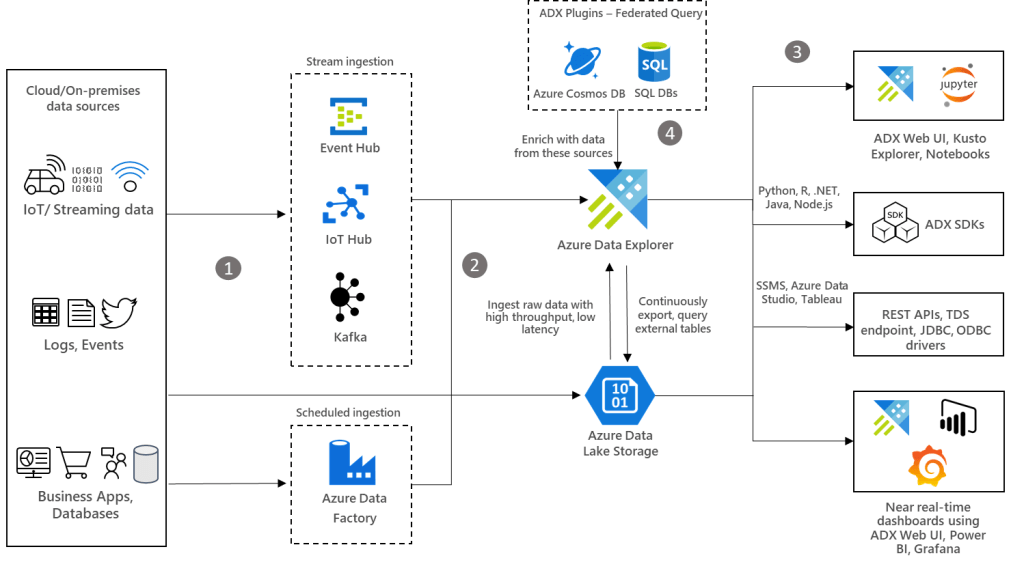
Architecture
Dataflow
Raw structured, semi-structured, and unstructured (free text) data such as, any type of logs, business events, and user activities can be ingested into Azure Data Explorer from various sources. Ingest the data in streaming or batch mode using various methods.
Ingest data into Azure Data Explorer with low-latency and high-throughput using its connectors for Azure Data Factory, Azure Event Hub, Azure IoT Hub, Kafka, and so on. Instead, ingest data through Azure Storage (Blob or ADLS Gen2), which uses Azure Event Grid and triggers the ingestion pipeline to Azure Data Explorer. You can also continuously export data to Azure Storage in compressed, partitioned parquet format and seamlessly query that data as detailed in continuous data export overview.
Enrich data running federated queries by combining data from SQL database and Azure Cosmos DB using Azure Data Explorer plugins.
Components
Azure Event Hub: Fully managed, real-time data ingestion service that’s simple, trusted, and scalable.
Azure IoT Hub: Managed service to enable bi-directional communication between IoT devices and Azure.
Kafka on HDInsight: Easy, cost-effective, enterprise-grade service for open-source analytics with Apache Kafka.
Azure Data Factory: Hybrid data integration service that simplifies ETL at scale.
Azure Data Explorer: Fast, fully managed and highly scalable data analytics service for real-time analysis on large volumes of data streaming from applications, websites, IoT devices, and more.
This blog post demonstrates a hybrid end-to-end monitoring solution integrated with Microsoft Sentinel and Azure Monitor for ingesting streamed and batched logs from diverse sources, on-premises, or any cloud, within an enterprise ecosystem.
Architecture
Workflow
Combine features provided by Microsoft Sentinel and Azure Monitor with Azure Data Explorer to build a flexible and cost-optimized end-to-end monitoring solution. Below are some examples:
Use Microsoft Sentinel as a SIEM and SOAR component in the overall monitoring solution where you can ingest security logs from firewalls, Defender for Cloud, and so on. SIEM is short for security information and event management, whereas SOAR is short for security orchestration, automation and response.
Use Azure Monitor’s native capabilities for IT asset monitoring, dashboarding, and alerting so you can ingest logs from VMs, services, and so on.
Use Azure Data Explorer for full flexibility and control in all aspects for all types of logs in the following scenarios:
No out of the box features provided by Microsoft Sentinel and Azure Monitor SaaS solutions such as application trace logs.
Greater flexibility for building quick and easy near-real-time analytics dashboards, granular role-based access control, time series analysis, pattern recognition, anomaly detection and forecasting, and machine learning. Azure Data Explorer is also well integrated with ML services such as Databricks and Azure Machine Learning. This integration allows you to build models using other tools and services and export ML models to Azure Data Explorer for scoring data.
Longer data retention is required in cost effective manner.
Centralized repository is required for different types of logs. Azure Data Explorer, as a unified big data analytics platform, allows you to build advanced analytics scenarios.
Query across different products without moving data using the Azure Data Explorer proxy feature to analyze data from Microsoft Sentinel, Azure Monitor, and Azure Data Explorer in a single query.
To ingest logs with low latency and high throughput from on-premises or any other cloud, use native Azure Data Explorer connectors such as Logstash, Azure Event Hub, or Kafka.
Alternatively, ingest data through Azure Storage (Blob or ADLS Gen2) using Apache Nifi, Fluentd, or Fluentbit connectors. Then use Azure Event Grid to trigger the ingestion pipeline to Azure Data Explorer.
You can also continuously export data to Azure Storage in compressed, partitioned parquet format and seamlessly query that data as detailed in the Continuous data export overview.
Components
Azure Event Hub: Fully managed, real-time data ingestion service that’s simple, trusted, and scalable.
Azure IoT Hub: Managed service to enable bi-directional communication between IoT devices and Azure.
Kafka on HDInsight: Easy, cost-effective, enterprise-grade service for open source analytics with Apache Kafka.
Azure Data Explorer: Fast, fully managed and highly scalable data analytics service for real-time analysis on large volumes of data streaming from applications, websites, IoT devices, and more.
Microsoft Sentinel: Intelligent security analytics for your entire enterprise.
Azure Monitor: Full observability into your applications, infrastructure, and network
The best part about all this is Microsoft Sentinel is built on Azure Monitor (Log Analytics) which in turn, is built on Azure Data Explorer.
That means that switching between these services is seamless. Which allows us to reuse Kusto query language queries and dashboards across these services.
This blog pos illustrates how Azure Data Explorer and Azure Synapse Analytics complement each other for near real-time analytics and modern data warehousing use cases.
This solution is already being used by Microsoft customers. For example, the Singapore-based ride-hailing company, Grab, implemented real-time analytics over a huge amount of data collected from their taxi and food delivery services as well as merchant partner apps. The team from Grab presented their solution at MS Ignite in this video (20:30 onwards). Using this pattern, Grab processed more than a trillion events per day.
This solution is optimized for the retail industry.
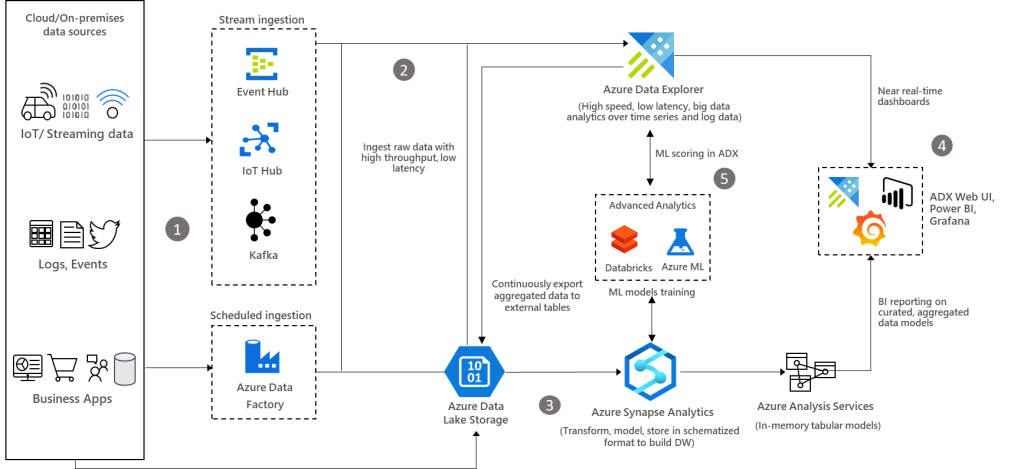
Dataflow
Raw structured, semi-structured, and unstructured (free text) data such as any type of logs, business events, and user activities can be ingested into Azure Data Explorer from various sources.
Ingest data into Azure Data Explorer with low-latency and high throughput using its connectors for Azure Data Factory, Azure Event Hub, Azure IoT Hub, Kafka, and so on. Alternatively, ingest data through Azure Storage (Blob or ADLS Gen2), which uses Azure Event Grid and triggers the ingestion pipeline to Azure Data Explorer. You can also continuously export data to Azure Storage in compressed, partitioned parquet format and seamlessly query that data as detailed in the Continuous data export overview.
Export pre-aggregated data from Azure Data Explorer to Azure Storage, and then ingest the data into Synapse Analytics to build data models and reports.
Use Azure Data Explorer’s native capabilities to process, aggregate, and analyze data. To get insights at a lightning speed, build near real-time analytics dashboards using Azure Data Explorer dashboards, Power BI, Grafana, or other tools. Use Azure Synapse Analytics to build a modern data warehouse and combine it with the Azure Data Explorer data to generate BI reports on curated and aggregated data models.
Azure Data Explorer provides native advanced analytics capabilities for time series analysis, pattern recognition, anomaly detection and forecasting, and machine learning. Azure Data Explorer is also well integrated with ML services such as Databricks and Azure Machine Learning. This integration allows you to build models using other tools and services and export ML models to Azure Data Explorer for scoring data.
Components
Azure Event Hub: Fully managed, real-time data ingestion service that’s simple, trusted, and scalable.
Azure IoT Hub: Managed service to enable bi-directional communication between IoT devices and Azure.
Kafka on HDInsight: Easy, cost-effective, enterprise-grade service for open source analytics with Apache Kafka.
Azure Data Explorer: Fast, fully managed and highly scalable data analytics service for real-time analysis on large volumes of data streaming from applications, websites, IoT devices, and more.
This service from Azure was developed to provide end-to-end data exploration services to help the businesses get quick insights, and make critical business decisions. It can be used for streaming data as well to identify patterns, statistics, anomalies, outliers, and even to diagnose issues.
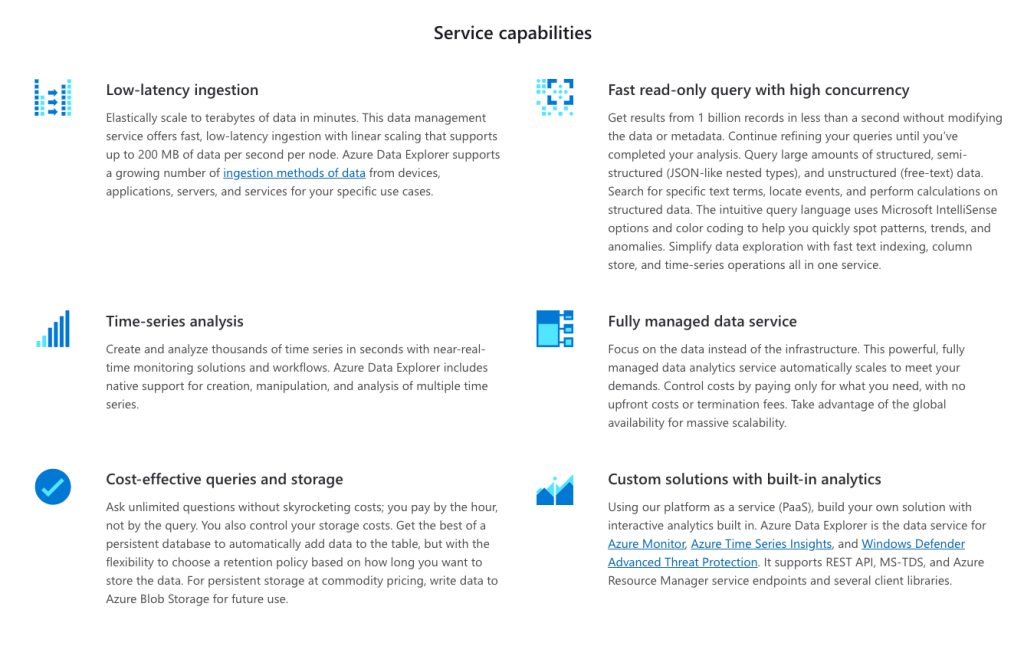
ADX is a fully managed data analytics service for near real-time analysis on large volumes of data streaming (i.e. log and telemetry data) from such sources as applications, websites, or IoT devices. ADX makes it simple to ingest this data and enables you to perform complex ad-hoc queries on the data in seconds – ADX has speeds of up to 200MB/sec per node (up to 1,000 nodes) and queries across a billion records take less than a second (!!). A typical use case is when you are generating terabytes of data from which you need to understand quickly what that data is telling you, as opposed to a traditional database that takes longer to get value out of the data because of the effort to collect the data and place it in the database before you can start to explore it. This allows us to iterate our queries really, really quickly.
Azure Data Explorer has a very fast indexing and a very powerful query language to work with the data. You guessed it – that language is Kusto Query Language!!.
Azure Data Explorer aka ADX, is a fast, highly scalable and fully managed data analytics service for log, telemetry and streaming data. This data exploration service enables you to pull together, store and analyze diverse data. You can query terabytes of data in a few seconds and it allows fast ad-hoc queries over the varied data.
ADX is a PaaS offering from Azure, which is capable of performing analysis on large volumes of data from heterogeneous sources, like – Custom Applications, IoT Devices, Diagnostic Logs, and other streaming data sources as well. This data can be structured, unstructured, or free text.
Data within ADX is organized in relational tables within the database, which has a strongly typed schema. It can scale quickly depending upon the ingested data volume and query load.
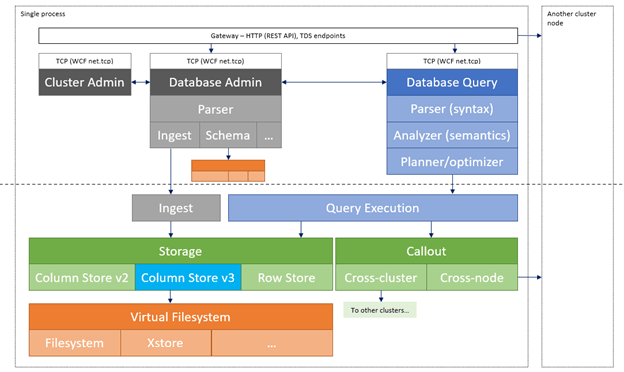
ADX works on the principle of isolation between Compute and Storage using volatile SSD storage as a cache and persistent storage in Azure Blob Storage. It is a fully managed ‘Platform as a Service (PaaS)’ that lets users focus only on their data and queries.
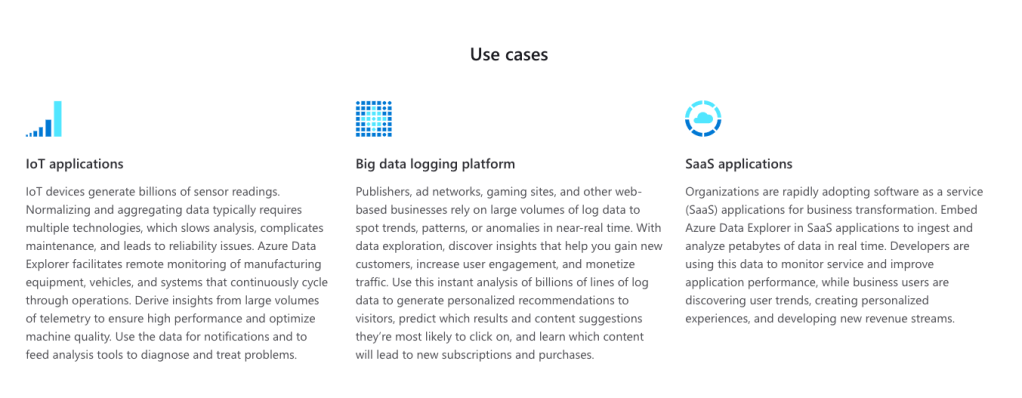
Azure Data Explorer can be used with other Azure offerings to create end-to-end solutions for various use cases.
Let’s have a look at some of those use cases for ADX.




 The Blog of The Hybrid DBA